Let your AI use your phone.
Lumtap connects Grok Bot, Claude, ChatGPT or Cursor to your Android phone. It sees the screen and taps, types and opens apps while you watch. One tap stops it.
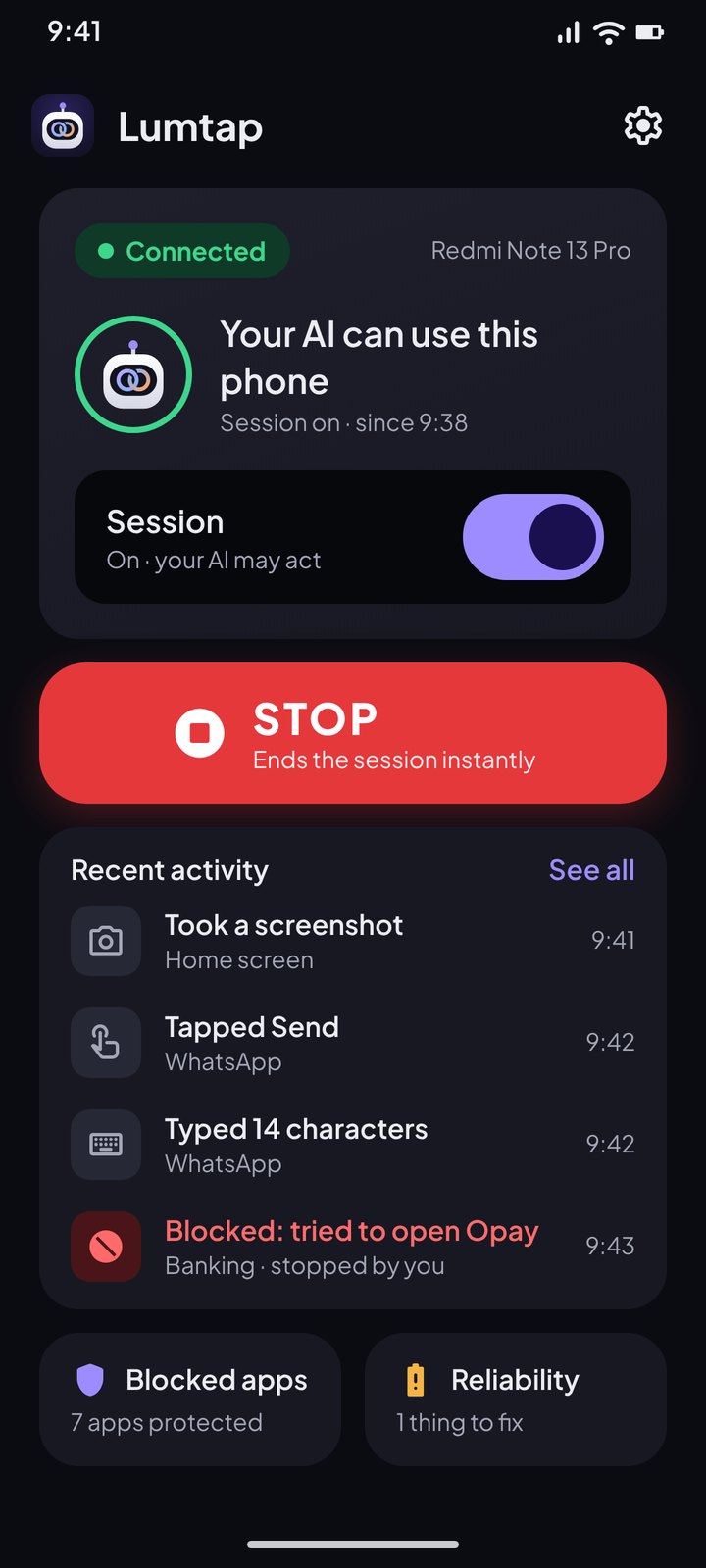
Your assistant gets hands, not just a voice.
It works the phone the way you would, so it can finish the job instead of telling you how.
Sees the screen
Reads what's on screen or takes a screenshot, so it knows where every button is.
Uses your apps
Taps, swipes, types and opens apps: reply to a chat, fill in a form, find a setting.
tapswipetype_textopen_appscreenshot
Works from anywhere
The phone dials out over an encrypted link. No cable, no ADB, no VPN, no open ports.
Set up in about two minutes.
Install the app
Download the APK and turn on the Accessibility permission when it asks.

Sign in and pair
Sign in with a one-time email code, then pair the phone from your account page or ask your assistant to “pair my phone”.
Add the connector
Paste this URL into your assistant's connector settings, sign in and tap Allow.
You can always see it, and always stop it.
Control stays on the phone in your hand, not on a server.
The screen glows while the AI acts
A soft glow runs around the edges whenever your assistant is in control. No glow means nothing is happening.
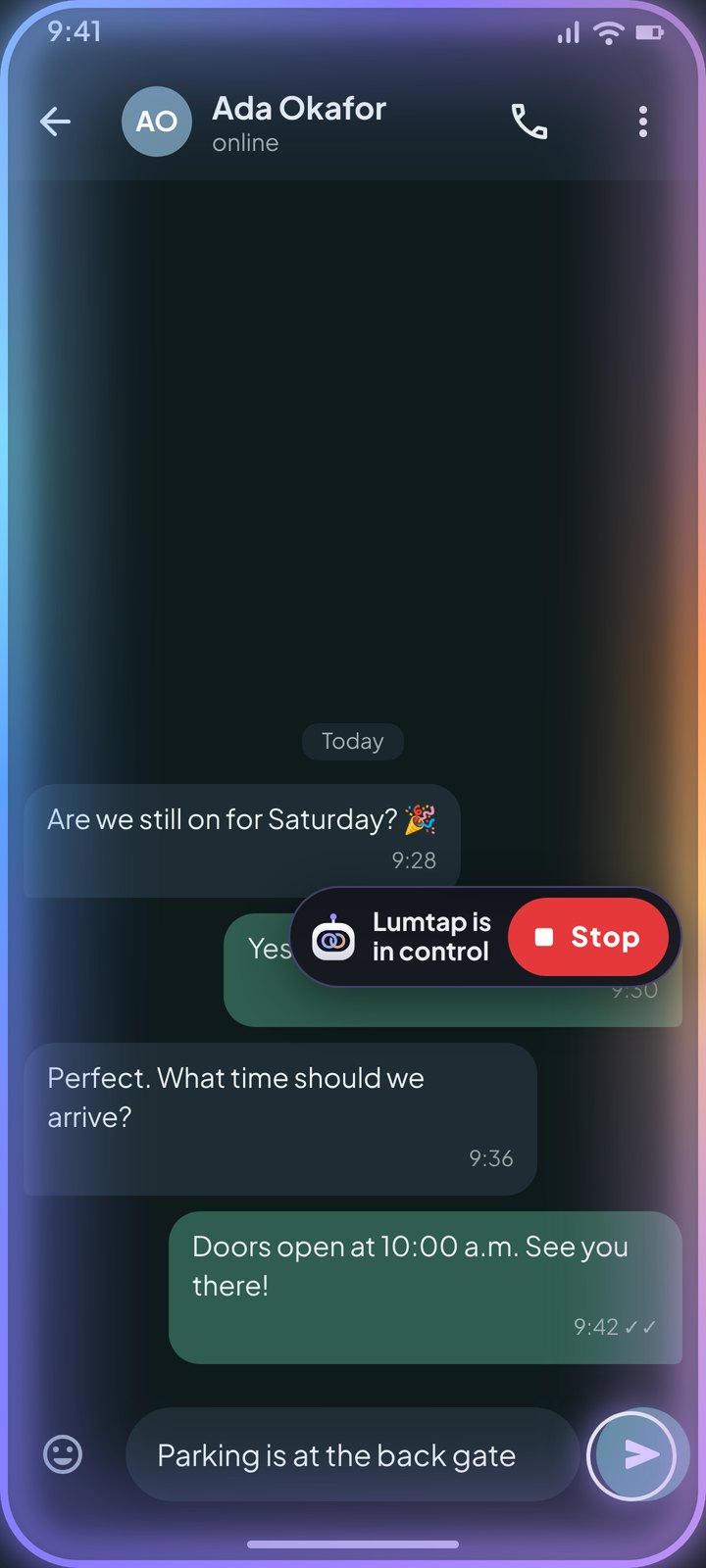
STOP is one tap away
The floating pill, the notification and a Quick Settings tile all end the session instantly, even offline.
 Lumtap is
in controlStop
Nothing connects without your Allow
Every assistant has to sign in to your account and get your approval first.
Sensitive apps are off-limits
Blocked by default. If one opens, the AI can only press Back or Home.
Revoke any time
Disconnect an assistant or unpair a phone. Access ends immediately.
Free while it's in beta.
Lumtap is free while it's in beta. If that changes, we'll say so here before you're asked to pay anything.
- Pair your phones
- Connect any MCP assistant
- Glow, STOP and blocked apps on every phone
Ready when you are.
Install the app, sign in and add the connector. Your assistant can start helping in about two minutes.
Android 8.0 or newer. Android will ask you to allow installs from your browser. Play Store version coming.
Version 0.3.3. SHA-256: 70a4a6d222b9a1e75fc03e814a6bd5365ebaa4dd59b6adb71f87c5c791ad57ad
What does it actually do?
It's an Android app plus a connector. Your AI assistant gets tools to see your screen and tap, swipe, type and open apps, but only while a session is switched on.
Which assistants work?
Any assistant that supports MCP connectors with OAuth sign-in, such as Grok Bot, Claude, ChatGPT (developer mode) and Cursor. Use https://lumtap.tech/mcp as the connector URL. The setup guide has the steps for each one.
Is it safe?
The screen glows whenever the AI acts, and a STOP pill floats on top. Banking, wallet, app store and security apps are blocked by default. You approve every assistant, and you can disconnect it or unpair the phone at any time.
Do I need root or ADB?
No. It uses Android's Accessibility permission, which you turn on yourself. No root, no USB debugging, no developer options.
Why isn't it on the Play Store?
It's on the way. Until then, install the APK from this page. Android will ask you to allow installs from your browser, and on Android 13 and newer to allow restricted settings for the app.
What do you store?
Your account email, your paired phones and your connected assistants. Screenshots and screen text pass straight through to your assistant and aren't stored. Typed text is never logged. See the Privacy Policy.
How do I stop it?
Tap STOP on the floating pill, in the notification or in Quick Settings, or switch the session off in the app. To end access for good, unpair the phone or disconnect the assistant from your account page.